
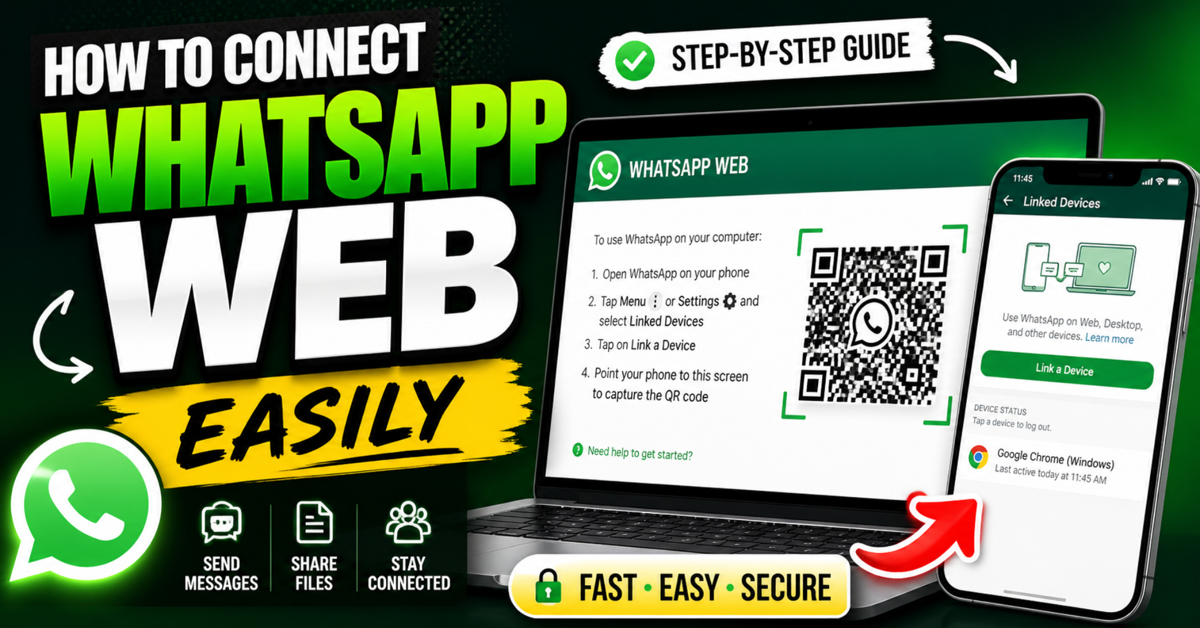
Learn how to connect WhatsApp Web on your computer easily. Follow this step-by-step guide to scan QR codes, send messages, and use all features of WhatsApp Web.
Introduction: What is WhatsApp Web?
In today’s fast-moving digital world, people don’t want to switch between devices again and again. This is where WhatsApp Web becomes extremely useful.
WhatsApp Web is the browser-based version of your WhatsApp account. It allows you to access your chats, send messages, share files, and manage conversations directly from your computer or laptop.
Simply put:
👉 WhatsApp Web mirrors your mobile WhatsApp on a bigger screen
👉 Everything stays synced in real-time
This means whatever you send or receive on your phone will instantly appear on your computer.
Why Use WhatsApp Web?
Before learning how to connect WhatsApp Web, let’s understand why millions of users prefer it.
🔥 1. Faster Typing
Typing on a full keyboard is much easier than typing on a small mobile screen, especially for long messages.
🔥 2. Better Productivity
If you work online, manage clients, or handle customer support, WhatsApp Web makes communication faster and more efficient.
🔥 3. Easy File Sharing
You can quickly send:
- Documents
- Images
- Videos
- PDFs
directly from your computer.
🔥 4. Multitasking
You can work on your laptop and chat at the same time without picking up your phone again and again.
👉 That’s why WhatsApp Web is widely used by students, professionals, and business owners.
How to Connect WhatsApp Web (Step-by-Step Guide)
Connecting WhatsApp Web is very simple. Just follow these steps carefully.
Step 1: Open WhatsApp Web on Your Computer
Open any browser like:
- Google Chrome
- Microsoft Edge
- Mozilla Firefox
Then go to:
You will see a QR code on the screen.
Step 2: Open WhatsApp on Your Phone
Now take your smartphone and open WhatsApp.
- On Android: Tap the three dots (⋮) in the top-right corner
- On iPhone: Go to Settings
Then tap on:
👉 Linked Devices
Step 3: Link Your Device
- Tap on Link a Device
- Your phone camera will open
- Scan the QR code shown on your computer
👉 Within a few seconds, your WhatsApp account will open on your computer
That’s it — you are now connected to WhatsApp Web!

Get WhatsApp
Chat History
How to Use WhatsApp Web After Connecting
Once connected, you will see all your chats on the left side and messages on the right.
You can:
- Send and receive messages
- Share photos and videos
- Upload documents
- Use emojis and stickers
- Pin or mute chats
👉 Everything works exactly like the mobile version
How to Log Out from WhatsApp Web
If you are using a public or shared computer, logging out is very important.
Method 1: From Computer
- Click on the three dots (⋮)
- Select Log Out
Method 2: From Phone
- Open WhatsApp
- Go to Linked Devices
- Select the connected device
- Tap Log Out
👉 This method is safer because you can remove access remotely.
Key Features of WhatsApp Web
WhatsApp Web is not just for chatting. It offers several powerful features.
⚡ Real-Time Sync
All messages are synced instantly between your phone and computer.
⚡ Keyboard Shortcuts
- Ctrl + N → New chat
- Ctrl + E → Archive chat
- Ctrl + Shift + M → Mute
⚡ Voice Messages
You can record and send voice notes directly from your PC.
⚡ Notifications
Get real-time notifications on your desktop when a message arrives.
⚡ Dark Mode
Switch to dark mode for better visibility at night.
Common Problems and Solutions (Troubleshooting)
Sometimes WhatsApp Web may not work properly. Here are common issues and fixes.
❌ QR Code Not Scanning
👉 Clean your phone camera
👉 Increase screen brightness
❌ WhatsApp Web Not Loading
👉 Check your internet connection
👉 Try another browser
❌ Frequent Disconnection
👉 Make sure your phone is connected to the internet
👉 Keep WhatsApp updated
❌ Slow Performance
👉 Clear browser cache
👉 Use incognito mode
Is WhatsApp Web Safe to Use?
Yes, WhatsApp Web is safe.
It uses:
👉 End-to-End Encryption
This means your messages are secure and cannot be read by third parties.
🔒 Safety Tips
- Never use “Keep me signed in” on public computers
- Always log out after use
- Avoid unknown links or files
- Enable two-step verification
WhatsApp Web vs WhatsApp Desktop App
| Feature | WhatsApp Web | Desktop App |
|---|---|---|
| Access | Browser | Software |
| Installation | Not required | Required |
| Speed | Moderate | Faster |
| Background | Limited | Full support |
👉 For regular use, WhatsApp Web is perfect
👉 For heavy usage, Desktop App is better
Frequently Asked Questions (FAQs)
❓ Can I use WhatsApp Web without my phone?
No, your phone must stay connected to the internet.
❓ Can I connect multiple devices?
Yes, you can connect up to 4 devices.
❓ Is WhatsApp Web free?
Yes, it is completely free.
❓ Can I make calls?
Calling is available in the desktop app, not fully supported in the web version.
Conclusion
Now you know exactly how to connect WhatsApp Web and use it effectively.
It is a simple, fast, and powerful tool that:
- Saves time
- Improves productivity
- Makes communication easier
Whether you are chatting with friends or managing business conversations, WhatsApp Web helps you stay connected without constantly using your phone.
🔥 Final Tip
Open:
👉 https://web.whatsapp.com
Scan the QR code and start using WhatsApp directly from your computer.